Amazingly and unexpectedly, this little project has grown to 100,000 subscribers. Let’s talk about the future of this channel, and I’ll give away a bunch of stuff too.
Let’s look at nine retro handheld gaming devices currently on the market or coming within the next few months, and which ones will give you the best value for your money.
In this video I’ll show you how to upgrade the operating system on the PowKiddy X18S to the slim and stable LineageOS from Black Seraph. We’ll also test out emulation performance with this new OS running N64, PSP, Dreamcast, GameCube, PS2, and more.
The GameSir T4 Mini is a new, condensed controller made with portability in mind. It runs on Switch, Android, iOS, and PC games, but do you really need a small controller? Let’s find out.
The Anbernic RG280M is on sale for $63 on Amazon so I decided to pick one up and compare it to the current catalog of sub-$100 retro handheld devices. With a well-established chipset and excellent custom firmware, is this a hidden gem, or something worth skipping?
There are many Android TV boxes that are capable of running EmuELEC, a gaming-centered operating system that makes playing retro games very simple and streamlined. Popular consoles are the “Super Console X” line of devices, which come pre-loaded with a bunch of games and with a couple cheap controllers. While these boxes are a great option for people who aren’t interested in learning how to set something like this up, they do have some shortcomings: they use unreliable SD cards that will fail on you eventually, the bundled controllers are laughably bad, and the game library they load onto the card is often poorly organized.
In this guide we’re going to walk you through how to make your own “Super Console X King” for the same price (or cheaper) as the pre-loaded box, but with superior materials and your own curated game library.
Where and how to buy
For this guide we are going to use the premier S922X chipset TV box, the Beelink GT King, which is what is used in the Super Console X King. The GT King has WiFi-6 for super stable connection, and a sleek looking box. It should cost about $110 altogether. There is an updated model called the Beelink GT King Pro, which has a negligible performance improvement. If you want similar performance but for a bit cheaper, I recommend the X88 King (4GB model), which can generally be found right at that $100 price range.
These devices are readily available on AliExpress, and with free shipping, but the ship time will take upwards of a month to arrive. If you want faster delivery, and don’t mind paying a bit extra for that convenience, here are some Amazon links:
Finally, if you’re really looking to get the best TV retro gaming performance, you will want to consider the NVIDIA Shield TV Pro. This device will support smooth Dreamcast and PSP performance, but doesn’t have EmuELEC support. So you will be relegated to Android-based gaming. That being said, this is a powerful 4K TV box in its own right, so if you’re shopping for something like a Roku box, Fire Stick, or Apple TV, this $200 device will replace those *and* perform as an impressively powerful gaming machine. Here is my video on that box.
Getting started
For starters, you’re going to want an SD card to load EmuELEC. Since this box can play systems like Dreamcast, PSP, and Sega Saturn reasonably well, you may want to get a larger card (like 256GB) since the game files for those systems can be rather large.
One more accessory to consider: if you don’t have a nice microSD to USB adapter, you might want to think about getting one. A nice adapter like this one from Anker will give you the fastest transfer speeds possible, and won’t cause any corruption issues with your card.
For controllers, I recommend the wired Betop controllers, which work well and are reasonably priced. If you want to go wireless, a bluetooth controller from 8BitDo is a great choice, or you could use an adapter to play using an Xbox or PlayStation controller you might already have around the house.
Finally, I would recommend that you build your ROM library now, if you haven’t already. Make a folder called “Retro Games” or something like it, and make distinct folders for each of the systems you would like to play on your device. I recommend naming your game folders after the “Rom Path” names found in this guide, because that’s how they’ll be organized on your device once we flash new firmware. Also be sure to load the folders with ROMs of the correct file extension, which is also found in that guide. For example, NES games can be in .7z, .fds, .nes, or .zip format.
When naming your games, I recommend using the “No Intro” standard (e.g. “Super Mario Bros. 3 (USA)”). This will allow you to use custom bezels when launching games (as demonstrated in the video guide above).
How to load EmuELEC on an Android TV box
To start, you will need to determine what type of device you’re actually running. The simplest answer it to check on CoreELEC’s device tree website and see if your device is listed. If so, make note of the device tree name associated with your device. If your device is not listed, look at other devices that have the same chipset, and find the most common device tree listed. For example, the GT King has the device tree named “g12b_s922x_beelink_gt_king”. We’re going to go with that one.
Note: if you have trouble determining your device’s CPU and RAM information, I recommend installing the Aida64 app on the Android side of your device, which will then show you all the internal specs of your device.
Next, let’s download EmuELEC. Go to the EmuELEC releases page and download the most recent img file named “EmuELEC-Amlogic-ng.aarch64-4.1-Generic.img.gz”. Using an app like Balena Etcher, flash this image to an SD card.
Once you have flashed the image to your SD card, a bunch of windows will pop up, one for every SD card partition. Just ignore all the warnings asking you to reformat the driver. Find the “EMUELEC” card partition, and within there, find the folder named “device_trees”. Inside, you’ll find a bunch of .dtb files. Find the one that corresponds to your device (remember, we’re using “g12b_s922x_beelink_gt_king” in this example), and then rename that file to dtb.img. Put it in the root directory of the EMUELEC card partition.
Using a toothpick, push in the reset button on the bottom of the device while plugging the device into its wall plug. Hold the reset button until you see the boot logo, and then release the button — EmuELEC will now install onto the device. Depending on your model, the reset button may be inside of the headphone jack.
How to load games onto your EmuELEC SD card image
You will need to add your own ROMs (game images) to the SD card. When you plug the SD card into your device, you should see three partitions appear: EmuELEC, Storage, and EEROMS. In the EEROMS partition you will find all sorts of game folders. Refer to this guide to see which gaming system each folder corresponds to, the required file types, and what emulator will run the games.
Additionally, it’s a good idea to load BIOS files, which are necessary for some systems, like Game Boy Advance, PlayStation, Dreamcast, and Sega CD. Refer to this page for a list of required BIOS files for each platform, or just load an entire RetroArch BIOS pack into the folder for a carpet-bomb approach.
With two big sales days in November (Singles Day and Black Friday), now is a good time to go over my favorite budget handhelds and some tips and tricks to get the best deals possible.
The PowKiddy RGB10 Max 2 is a hardware refresh for one of my favorite retro handheld devices — it boasts a brighter screen, better ergonomics, and stacked shoulder buttons. So is this device worth considering, or just more of the same?
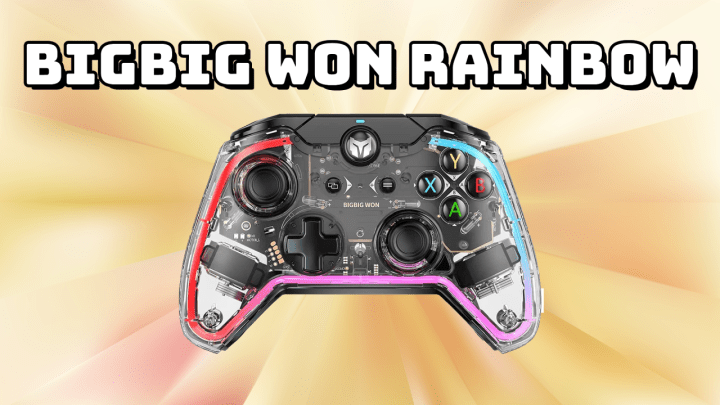
The new BigBig Won Rainbow controller is uniquely designed amid a very saturated market of third party controllers. But is it any good? Let’s find out.


 Retro Game Corps