

In today’s video, let’s look at the PowKiddy Q90, a budget handheld with the same specs as the V90. With a price that ranges from $30 to $40, is it worth it?
Continue reading “Review: PowKiddy Q90”
In today’s video, let’s look at the PowKiddy Q90, a budget handheld with the same specs as the V90. With a price that ranges from $30 to $40, is it worth it?
Continue reading “Review: PowKiddy Q90”
Last Updated: 23FEB2021
When it comes to custom firmware options for the RG351 devices, 351ELEC is a masterclass in curation and user friendliness. While I adore ArkOS for how easy it is to tinker with the device and firmware, 351ELEC is more suited to those who just want to jump into some games without having to do a lot of tweaking.
Lucky for us, 351ELEC 2.0 is now available, and it has hundreds (over 275, to be more precise) of new tweaks under the hood and in the user experience. Check out the video for my full breakdown, and also see the notes below for links to some of the things I mention in the video.
DOWNLOAD THE LATEST 351ELEC IMAGE HERE
Continue reading “351ELEC 2.0 Released: The Ultimate “Plug and Play” Firmware for RG351 Devices”
Today we’re going to check out LineageOS, which boots Android 11 on your ODROID Go Super. This unlocks a ton of potential: Android games, remote play, game streaming, and some pretty impressive emulation. This could be a game-changer.
Continue reading “LineageOS (Android 11) on ODROID Go Super”
The Super Console X looks really cheap, but it actually packs quite a punch. And at $65, this is the most affordable and best no-fuss emulation experience for your TV available today.
Featured in the video:
Super Console X
8bitDo Wireless Receiver
8bitDo SN30 Pro controller

Last updated: 18FEB2021 (see Changelog for details)
Games made with RPG Maker just won’t quit. This classic tool still has new releases coming out all the time, and the vast majority of them are free and a lot of fun. Luckily, you can actually play most games that were made with RPG Maker 2000 and RPG Maker 2003 on the Anbernic RG351P and RG351M, and this guide will show you how.
Continue reading “Guide: RPG Maker Games on RG351 Devices”
In today’s video I’ll show you how to swap out the stock buttons on your 8bitDo Arcade Stick for other buttons of your choosing.
I bought my buttons from Focus Attack, which you can find here.
Continue reading “8bitDo Arcade Stick: Button Upgrade Guide”
UPDATE: PortMaster has recently created a one-stop shop for all things related to running ports on retro handhelds. I recommend checking out their website and my most recent PortMaster guide instead of the guide below; I’m leaving this page up for posterity’s sake only. To get started, head over to their Games tab, find the game you want to run, and check out their instructions on that page. If you run into any issues, their discord server is also a great place to start.
In this video I’ll show you how to install the beautiful, widescreen 2013 mobile versions of Sonic 1, Sonic 2, and Sonic CD on any device running EmuELEC 4.0 firmware — including the ODROID Go Super, PowKiddy RGB10, and the Super Console X. And it can all be done for free! I really like these ports because they take advantage of widescreen devices like the ODROID Go Super, giving you an opportunity to play these games in a whole new way.
UPDATE: The Sonic ports are now available via PortMaster, which makes them available on many devices and firmwares.
This is all thanks to a decompilation of the Sonic games, which you can find here.
Continue reading “Sonic 1, Sonic 2, and Sonic CD Ports on Retro Handhelds”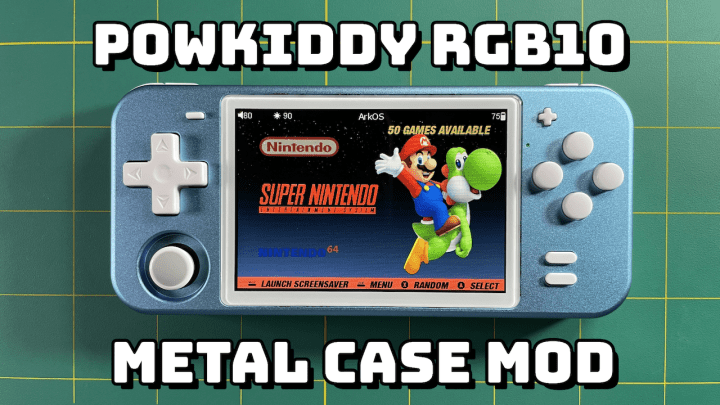
In today’s video I’m going to show you how I upgraded my PowKiddy RGB10 with a metal case, OCA-laminated screen, bigger battery, PS Vita analog stick, and an upgraded iPhone 8 speaker.
Buy your upgrade kit or custom-made console here.
Check out Always Be Fun’s YouTube channel for more modding adventures!

Last updated: 05SEP2021 (see Changelog for details)
I’m very proud of the PocketGo S30 Add-On Pack that I created last month, but something didn’t sit well with me about it. For starters, it was basically a series of clever workarounds to improve the experience, but it wasn’t perfect or sustainable. Today I’d like to introduce something I’m calling “Simple30”, which is a compilation of many improvements made by the retro handheld community that turns this device into something truly neat.
If you haven’t already, consider buying a PocketGo S30. For $60, it’s an excellent deal.
Table of Contents
First things first
Features
Installation
Required BIOS files
Supported systems
Hotkeys
Notes
Known issues

Changelog
First things first
The honest truth is that I had very little to do with the actual development of Simple30. This project is available thanks to a number of developers whose work enabled me to basically compile and streamline the user experience.
Developer bkacjois was able to create a fully-formed RetroArch 1.9.0 that works on the S30
Steve from Tech Toy Tinker (and RetroArena) added dozens of new emulators and ports to the device
DaMikki developed a safe shutdown mechanism for use with this device
So really I just took their work and put it into one package. I don’t think that Simple30 is the end of this development, either; I think that there are plenty more milestones to come.
Features
When it comes down to it, the goal of Simple30 is to give the user a fully capable device, but with a pick-up-and-play experience.
Simple30 is:
Installation
I recommend you upgrade the stock SD card in your device to a 128GB or 256GB microSD card, from a reputable brand like SanDisk or Samsung, so that you have a reliable storage option with plenty of space for your game collection. It is also confirmed that 512GB cards also work fine on this device. Here is a link to my recommended cards.
In order for this card to work on your device, you will need to format it to FAT32 file system. Windows can only format cards which are less than 32GB to FAT32, so you will need to use a program called guiformat. For Mac, you can use the Disk Utility program that comes with MacOS to format (“erase”) the card, with MS-DOS (FAT) as the format. In both cases, you can name the card “SIMPLE30”.
Once your card is formatted, download Simple30 here, and unzip the contents and drag them into your FAT32-formatted SD card. That’s it, you’re done. You can now add your game files to their respective folder within the main “roms” folder, and your BIOS files, too (more on that in the next section).
Required BIOS files
The BIOS files now need to be placed in the retroarch/system folder. Here are the necessary BIOS files for the default systems:
DREAMCAST:
dc/dc_boot.bin
dc/dc_flash.bin

SEGA CD:
bios_CD_E.bin
bios_CD_J.bin
bios_CD_U.bin

FAMICOM DISK SYSTEM:
disksys.rom

GAME BOY (for boot logo):
gb_bios.bin

GAME BOY COLOR (for boot logo):
gbc_bios.bin

GAME BOY ADVANCE:
gba_bios.bin

NEO GEO:
neogeo.zip

PLAYSTATION:
scph1001.bin

TURBOGRAFX-CD:
syscard1.pce
syscard2.pce
syscard3.pce
Supported systems
The Simple30 image, by default, contains about 20 of the most popular classic systems:
Arcade (FinalBurn Neo)
Arcade (MAME 2003-Plus)
Arcade (Neo Geo)
Nintendo Entertainment System
Super NES
Nintendo 64
Game Boy
Game Boy Color
Game Boy Advance
Sega Master System
Sega Genesis
Sega CD
Sega 32X
Sega Dreamcast
Sega Game Gear
Sony PlayStation
Sony PSP
TurboGrafx-16
TurboGrafx-CD
Note that with this new software, Nintendo 64 is now available. But just like Sega Dreamcast and Sony PSP, performance is relatively limited. The other systems play just fine.
If you want to remove any of these systems from your main menu, simply go to the sections/emulators folder on your SD card, and move the respective system launcher file (they’ll be labeled according to the system they support) into the sections/emulators/optional folder; this will make the system disappear from your main menu.
But additionally, there are other emulators and ports that you can play on your device, such as:
CPS1
CPS2
MAME 2010
Neo Geo CD
Famicom Disk System
Famicom
MSU1
Satellaview
Super Famicom
Sufami Turbo
N64DD
N64 (Parallel core)
Virtual Boy
Game & Watch
Super Game Boy
Atomiswave
Naomi
Dreamcast VMU
PSP Minis
Neo Geo Pocket
Neo Geo Pocket Color
Atari Lynx
Wonderswan
Wonderswan Color
ZX Spectrum
TIC-80
MSX Turbo R
MSX
MSX2
Colecovision
Odyssey Videopac
SuperGrafx
SG-1000
Atari 2600
Atari 5200
Atari 800
Atari 78
Atari ST
Vectrex
Amiga 500
Amiga CD32
PC98
PC88
Channel F
X86000
Sharp X1
Amstrad CPC
Intellivision
Thomas MO5
Commodore 64
Commodore 128
Commodore PET
Commodore Plus4
Commodore VIC20
Palm OS
2048
EasyRPG
Pokemon Mini
Wolfenstein 3D
Mr. Boom
Uzebox
Cavestory
Quake
Lutro
Rick Dangerous
DOOM
OutRun
Dinothawr
To add these systems to your device, navigate to the sections/emulators/optional/ folder, and move whatever system you would like to play into the sections/emulators folder instead. Note that some of these systems will require additional BIOS files, and the ports will require retail files added to their respective rom folder.
Hotkeys
All of the emulators (except for the standalone PSP emulator) will take advantage of RetroArch’s universal hotkeys system. Here are the hotkeys that you can use while in a game:
RetroArch hotkeys

SELECT + POWER = Quit game and return to main menu
SELECT + START = RetroArch Menu
Hold START (3 seconds) = RetroArch Menu
SELECT + Y = Toggle FPS (frames per second)
SELECT + B = reset game
SELECT + A = pause emulation
SELECT + R1 = save state
SELECT + L1 = load save state
SELECT + L2 = rewind (when enabled)
SELECT + R2 = fast forward (see note below)
SELECT + RIGHT on d-pad = save state slot +
SELECT + LEFT on d-pad = save state slot -
SELECT + UP on d-pad = volume up
SELECT + DOWN on d-pad = volume down
Thanks to developer DaMikki, we now have working Fast Forward on Simple30.
– Launch RetroArch without a game loaded, then navigate to Settings > Video > Threaded Video > ON
– Go to Main Menu > Configuration File > Save Current Configuration
– Exit RetroArch, launch a game, and then press SELECT + R2 to toggle Fast Forward
Note that threaded video will introduce some screen shimmering on certain games, which may be undesirable. If you want to have the feature only on certain games, then launch that game, turn on Threaded Video, and then save the setting within Quick Menu > Configuration File > Save Game Configuration.
Notes
Here are some random notes that may help you get the most out of this unique device:
selectorfilter=gdi,cdi) or similar, and add the file extensions of your roms (.iso, .img, and so on).Known issues
Like any software solution, Simple30 is a work in progress. Here are some of the issues that I have noted:
params=-v -c retroarch-arcade.cfg -L mame2003_libretro.so).Changelog
05SEP2021
– Added Fast Forward instructions
13FEB2021
– Published guide
16FEB2021
– Added note about adding additional file extensions
– Added known issue about MAME 2003-Plus buttons

The new EmuELEC 4.0 update is now available, and it works on a number of devices, including the ODROID Go Super and PowKiddy RGB10. So let’s see what this new update is all about.
Continue reading “EmuELEC 4.0 Update – First Impressions” Retro Game Corps