

Last updated: 10FEB2026 (see Changelog for details)
The Android operating system is found everywhere — on phones, tablets, retro handheld devices, media streaming devices, and even some TVs. This guide is meant to help you get acquainted with game emulation on any number of Android devices.
Table of Contents

Recommend accessories
Setup process
Prepare your ROM library
Recommended emulators
Turnip drivers
Android frontends
Game streaming
Updating your apps
RetroArch -- classic systems
RetroArch vs standalone emulators
PlayStation 1 -- Duckstation
Nintendo 64 -- Mupen64Plus-FZ
Sega Saturn -- Yaba Sanshiro 2 (Pro)
Sega Dreamcast -- Redream
Nintendo DS -- MelonDS
Nintendo 3DS -- Citra or Lime3DS
PlayStation Portable (PSP) -- PPSSPP
PlayStation Vita (PS Vita) -- Vita3K
Nintendo GameCube and Wii -- Dolphin
Nintendo Wii U -- Cemu
PlayStation 2 -- NetherSX2
PlayStation 3 -- RPCS3
Nintendo Switch -- Sudachi or Citron
Pico-8 -- Winlator

Changelog
The video above is my most recent Android device starter guide. It will walk you through the whole installation and configuration process for just about every Android-based handheld, phone, or tablet. This written guide is an accompaniment to that video guide, with all of the pertinent links mentioned in the video. Additionally, I’ll update this written guide over time in case some elements of the video become outdated.
Recommended accessories
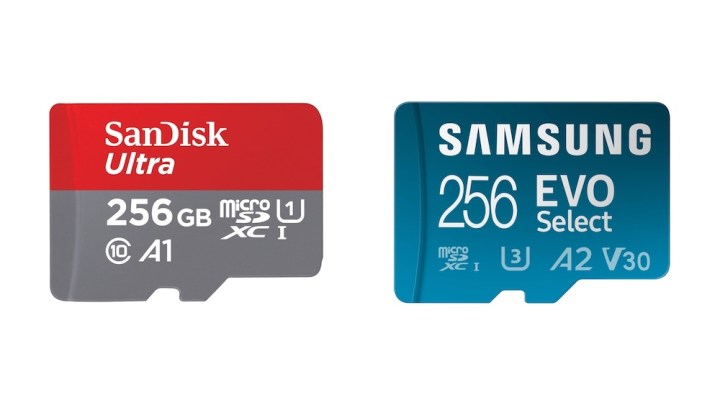
Some Android devices will have a microSD card slot, which is handy for storing game files. I recommend using a card from reputable brands like SanDisk or Samsung to use in your device, for the fastest and most stable performance.
In general, I recommend the cards listed below. The prices fluctuate all the time, so keep an eye out for deals. A 128GB or 256GB card will allow you to load EVERY 8-bit and 16-bit game out there, just all of the arcade games that work, and quite a few CD-based games (those systems have the largest file sizes). A 512GB or 1TB card will allow you to store even more of those larger games.
128GB cards:
Samsung EVO Select
SanDisk Ultra

256GB cards:
Samsung EVO Plus
SanDisk Ultra

If you are using an Android phone, then I recommend a telescopic controller like these from GameSir. The G8 Galileo (left) is a USB-C controller that connects to most phones without issue, and feels great. The one on the right is the GameSir G8 Plus, which is Bluetooth and opens up wider, making it perfect for smaller tablets (and even the Nintendo Switch). GameSir also recently released their X5 (X5S and X5 Lite) controllers which are cheaper and a bit more compact.

If you don’t have a nice microSD to USB adapter, you might want to think about getting one. This allows you to plug a microSD card into your computer to transfer files. A nice adapter like this one from Anker will give you the fastest transfer speeds possible, and can be used with USB-A or USB-C ports. Their USB-A version is also great.

Additionally, some Android devices have video-out capabilities via their USB-C port. You will want to check the manufacturer specs to see if it’s possible. I would recommend getting a USB-C to HDMI adapter or a USB-C hub with HDMI output, so that you can turn your device into a home console to play on your TV. The hub might be worth the extra cost, since you can also use it to power the device, connect to a microSD card, and connect wired controllers all in one.

Setup process
My process for setting up an Android-based device is generally straightforward, and this is what we will do in the video guide above.
I recommend starting with setting up my preferred frontend, Emulation Station Desktop Edition (ES-DE), because the installation and initial configuration process creates ROM folders on your preferred storage space (i.e. a microSD card). That way, you can add your games to those folders for a nicely organized experience. If you’d like, you can use my ES-DE Directory tool to create the folder structure without having to install ES-DE first (this is handy if you want to try a different frontend instead).
From there, we will install each emulator, either directly from the Play Store or manually installing them through a process called side-loading. Once we have the emulators installed, we can configure each of them so that they know where to find your games. Finally, we will wrap it all together by configuring ES-DE to work with all of our emulators.
So in summary, here is our workflow:
- Set up Android
- Install apps via the Play Store
- Side-load apps via Obtanium
- Add games and BIOS files
- Configure each emulator
- Tie everything together with a frontend
Prepare your ROM library
Another important aspect of retro gaming is to build your ROM library. Here is a general list of systems that can be played on Android. You can start building your ROM library at any time, even before you set up your Android device.
For PS2 and GameCube on lower-end Android devices, I recommend getting PAL region ROMs, because they cap out at 50Hz which will give you better performance than struggling to reach the standard 60Hz found in NTSC region ROMs. ROM files are copyrighted and will not be shared on this website.
Home Consoles:
Atari 2600, 5200, etc
Atari Jaguar
Colecovision
Panasonic 3DO
PC Engine (TurboGrafx-16)
PC Engine CD (TurboGrafx-CD)
NES / Famicom Disk System
Super Nintendo
Nintendo 64
Nintendo GameCube
Nintendo Wii
Nintendo Wii U
Sega Master System
Sega Genesis
Sega CD / 32X
Sega Saturn
Sega Dreamcast
Sony PlayStation
Sony PlayStation 2
Handheld Consoles:
Atari Lynx
Game & Watch
Nintendo Game Boy
Nintendo Game Boy Color
Nintendo Game Boy Advance
Nintendo DS
Nintendo 3DS
Nintendo Switch
Nintendo Virtual Boy
Sega Game Gear
Sony PSP
Sony PS Vita
Neo-Geo Pocket / Color
Wonderswan / Color
Home Computers:
Amiga
Amstrad CPC
Atari ST
Commodore 64 (and C16/Plus4, C128)
Intellivision
MSX
PC (DOS)
ScummVM
ZX Spectrum
Arcade Systems:
MAME
Final Burn Neo
Neo-Geo / CD
Atomiswave
Naomi
When organizing ROM files, I recommend using the “No-Intro” naming convention, which is the standard naming used for ROM sets within RetroArch and other emulation communities. By using no-intro naming, you will be more likely to get box art automatically added when you load up your games in RetroArch or most frontends. If you have a question as to how a game should be named, I recommend checking out the Libretro thumbnails directory, which is what many emulators pull from for their media files. If your game name matches the thumbnail name found in this directory, chances are that it will properly download the media for it.
Additionally, an important component of a ROM library is maintaining BIOS files. BIOS files are system files necessary for some emulators (GBA, Sega CD, or PS1/PS2), and are helpful in improving accuracy with other systems. These files are also copyrighted. Note that PS2 BIOS files can be easily extracted from the PS3 firmware file following my guide. Here is more general information about BIOS files.
Recommended BIOS files:

GAME BOY / COLOR:
gb_bios.bin
gbc_bios.bin

GAME BOY ADVANCE:
gba_bios.bin

SWITCH:
prod.keys
firmware zip file (match prod.keys version)

PLAYSTATION 1 (many options!):
scph5501.bin

PLAYSTATION 2 (many options!):
SCPH-70012.bin

PS VITA:
PSP2UPDAT.PUP
PSVUPDAT.PUP
SEGA CD:
bios_CD_E.bin
bios_CD_J.bin
bios_CD_U.bin

SATURN:
sega_101.bin
mpr-17933.bin

DREAMCAST:
dc_boot.bin

NEO GEO (also place in Neo Geo ROM folder):
neogeo.zip

TURBOGRAFX-CD:
syscard1.pce
syscard2.pce
syscard3.pce
When building your ROM library, another handy trick is to compress your files to save on storage space. This guide will walk you through how to compress many of the CD-based systems PlayStation, Sega CD, Saturn, 3DO, Dreamcast, Jaguar, and TurboGrafx-CD (PC Engine CD).
On older versions of Android, when you first plug your microSD card into the device, you may get prompted to “set the SD card up”. It will ask you to choose between the default portable storage option, or using the card as internal storage. Portable storage means that you will be able to freely take the SD card out of the device and plug it into your PC, as demonstrated in the video guide. If you set it to internal storage, you will then be able to install apps on the SD card to save internal storage space, but you won’t be able to plug the SD card into your PC — instead, you will have to plug the device into the PC and transfer files via USB cable instead. Internal storage is a good solution if you want to install a LOT of Android apps onto your device, but in general I recommend portable storage for its flexibility.
Recommended emulators
The process for installing apps is simple: grab what you can from the Play Store, then load the rest yourself using an app called Obtainium. You can actually install just about everything you need from Obtainium without having to use the Play Store. Here are individual links to most of the common apps you’ll need:
After your initial Android set up, you can jump into the Google Play Store app and start downloading emulators and games. Some apps (like RetroArch) have Play Store versions but they are less frequently updated, and it’s best to grab them directly from the source.
RetroArch (Aarch64 version) -- classic systems
Duckstation (free, Play Store) -- PS1
Mupen64Plus FZ (Pro version, Play Store) -- N64
Redream (free, in-app upgrade, Play Store) -- Dreamcast
Yaba Sanshiro 2 (Pro version, Play Store) -- Saturn
PPSSPP (Gold version) -- PSP
Dolphin (latest build) -- GameCube & Wii
Dolphin forks -- GameCube & Wii
NetherSX2 Classic (see note below) -- PS2
MelonDS -- Nintendo DS
Azahar -- 3DS
Citra MMJ -- 3DS (low powered devices)
Vita3k -- PS Vita
Cemu -- Wii U
Eden -- Switch

PC gaming:
GameHub -- Windows/Steam
GameHub Lite -- Windows/Steam (no login required)
GameNative -- Windows/Steam/GOG/Epic
Winlator -- Windows

Other apps:
Syncthing-Fork (free) -- save syncing (guide)
Apps that are not in the Play Store have to be downloaded manually and then side-loaded, which simply means you install them yourself. It’s an easy process. You can do this manually, by navigating to this guide on your device’s web browser, then tapping on each link to go to the download page for that app. Once downloaded, find the app in your Downloads folder, tap on it, and it will install.

My preferred way to side-load apps is Obtainium. This app will check the app versions on your device, and notify you when a new version is available, and you can update that app directly within Obtainium too. There is also a handy update script that will auto pull the apps for you into Obtainium.
To get started, download the latest Obtanium release (the “app-release.apk” version) and install it on your device. Next, download the latest Emulation Pack json script and save it you your device. Open Obtanium, tap on “import/export” then “Obtanium import” and find the json file you downloaded. It will show you a list of emulators you can download and install — choose one, then tap on the “install” button at the bottom of that screen; repeat for other apps as needed.
For RetroArch, I recommend using the nightly build. Once you have installed the app, I strongly recommend going through my RetroArch Starter Guide to orient you to the platform itself (the video guide above will walk you through the basics, so you can always come back to this later). I consider this to be a necessary part of the process when it comes to mastering emulation on an Android device, particularly for retro games. It has a learning curve to it, but once you get the hang of it, you can use these skills for a variety of devices that use RetroArch.
For PS2 emulation, there are two main options: NetherSX2 “patch” (4248) and NetherSX2 “classic” (3668). Note that performance between the 3668 and 4248 versions can vary — some games just run better on one over the other (for example, Sly Cooper runs better on 3668). Sadly, you can’t have both installed on the device at the same time, so you will have to swap between the two. For most devices, I have found that NetherSX2 Classic (3668) generally provides more stable performance.
The main Nintendo Switch emulator (Yuzu) stopped development and was removed from general availability in 2024. More recent forks like Citron and Eden have made large strides and are generally recommended.
The standalone Yabasanshiro app generally has the best Sega Saturn performance, at the expense of some accuracy. For the Retroid Pocket 5/Mini and beyond, I recommend the Beetle Saturn core within RetroArch, which is highly accurate. This is a similar setup with Dreamcast; the Redream app’s auto-frameskip can sometimes help with performance on lower-end hardware, but the RetroArch Flycast core is excellent if you have the power to use it.
Turnip drivers
When using a Snapdragon-based devices, you can install third-party (“Turnip”) drivers to certain emulator apps to improve compatibility and performance. Emulators that support this feature include Dolphin, Cemu, Azahar, Vita3K, and Yuzu (plus its forks like Eden and Citron). I find it to be a necessity for PS Vita and Switch emulation, but rarely provides a benefit with Dolphin or 3DS.
The two main places to find third-party drivers are from K11MCH1 and Mr. Purple. There are several versions of these drivers available from the main repository, and they are being updated all the time. However, keep in mind that the most updated drivers may not be the best for your device — it’s all very specific to the GPU found in each Snapdragon chip.
For emulator apps like Eden, you can load several different Turnip drivers at once within the GPU Driver Manager section, and then set one as the default driver. They even provide you with a recommended driver for your device’s GPU. Often I will check Eden first, see what they recommend, then download that driver to use in other apps. If you encounter crashes or other issues, then long-press on the game in the emulator’s menu, then choose the per-game GPU driver manager and try an alternative (or even just the default Qualcomm drivers that come with the device).
Android frontends
There is a staggering amount of frontend options available for Android devices. These apps will take all of the various emulator apps from this guide and wrap them all up into a single user interface. Here is a quick summary of some of the most popular options.
ES-DE (Emulation Station Desktop Edition): This is my preferred frontend, for many reasons (that I detail in the video above). It feels more like a “console” than the other options, and has a number of different themes. It’s a paid app, it costs $5.50 as a one-time purchase. In this guide, we’re going to use this as our frontend launcher and we’ll START the guide with setting it up, because it will create all of our ROM directories for us.
Daijisho: This one is 100% free and does a great job of simplifying the setup process. It also has handy tools like widgets to personalize your experience.
Beacon: This is a simple, easy app that costs $3. It is frequently updated and is a nice mix between feeling like an Android interface and a gaming console frontend.
Console Launcher: This app has more of a “tile” feeling to it, with the ability to seamlessly integrate your Android apps and ROMs side by side. It’s free but also offers an in-app upgrade purchase for additional features. If you’d like to test out their pre-release builds, you can find them on their GitHub page.
Reset Collection: This is a paid ($5) app with some nice features. You can add your systems one-by-one, and it will add the media for you. The interface is clean but won’t scale super well on devices with smaller screens; on phones and some retro handhelds, the browsing experience can feel limiting.
ATV Launcher Pro: This app is an Android frontend most commonly used with TV boxes and tablets. It transforms the standard Android interface into a tile-based one, and has some nice features like widgets and the ability to hide or customize each tile. This allows you to make a clean interface that resembles a gaming console, and also works well when using controllers. There is a free version that works well, but the paid version ($3) is necessary to remove ads and have the ability to hide and customize the tiles. This option is a good choice if you don’t mind still having to navigate through standalone apps and emulators; it’ll still definitely feel like an Android device…but a prettier one.
LaunchBox: This is the priciest option when it comes to Android frontends — there is a free version that is limited to 100 games, but a lifetime license costs a whopping $40. Thankfully, this license can be used on multiple devices, so you will be able to use it on any Android device going forward. Cost aside, LaunchBox is a nice all-around frontend for those who want a clean interface with minimal work.
Game streaming
While this is an emulation guide, it’s also important to recognize that many Android tablets and phones can double as streaming consoles, too. In addition to streaming PC games from your computer or the cloud, you can also use remote play apps to play modern gaming consoles. If your Android device isn’t quite powerful to emulate some higher-end systems, you could run those systems on a computer and then stream your computer to the device instead.
The video above will show off a couple of my favorites, with Apollo/Artermis quickly becoming my go-to recommendation.
Artemis – Android client (Moonlight fork)
Apollo – PC host (Sunshine fork)
Other recommended streaming apps:
NVIDIA GeForce Now (PC cloud streaming)
Shadow PC (PC cloud streaming)
Moonlight (PC remote play)
AMD Link (PC remote play)
Steam Link (PC remote play)
Parsec (PC remote play)
PXPlay or Chiaki (PS4 & PS5 remote play)
XBXPlay (Xbox remote play)
Updating your apps
For apps that you installed via the Play Store, updating the app is as simple as going to the Play Store and then updating the apps under the “Manage Apps” function. For apps installed via Obtanium, simply go back to Obtanium and follow the prompts to install any updates that are available.
For those you manually sideload, it’s often just a matter of going back to the website, downloading the latest APK, and then installing it — most apps will notice that you already have an older version installed, and will install the new one without messing with your settings or save data. Some apps may give you an error (“this app could not be installed” or “installation failed”), if that happens, you can uninstall the old app (be sure “keep app data” when prompted), then install the new one. You may have to reboot your device between installations if it doesn’t work the first time around.

RetroArch — classic systems
RetroArch is a kitchen-sink emulation program available on a variety of platforms, including Android. RetroArch can play dozens of emulated systems while standardizing options like hotkeys, controls, screen settings, and more. For more specific RetroArch settings, I recommend using my RetroArch Starter Guide as a reference. This will explain the basics of the app and how to properly configure settings.
Recommended RetroArch cores:

Arcade (FinalBurn Neo) -- fighting games and beat'em ups
Arcade (MAME 2003-Plus) -- all-around arcade emulation
Commodore Amiga (PUAE)
DOS (DosBox-Pure)
NEC PCE/TG-16/PCE-CD/TG-CD (Beetle PCE)
Nintendo GB/GBC (Gambatte)
Nintendo GBA (mGBA)
Nintendo Virtual Boy (Beetle VB)
Nintendo DS (melonDS)
Nintendo NES (Nestopia)
Nintendo SNES (Snes9x Current)
Nintendo 64 (ParaLLEl or Mupen64Plus)
ScummVM -- point-and-click PC games
Sega Master System/Genesis/CD (Genesis Plus GX)
Sega 32x (PicoDrive)
Sega Saturn (YabaSanshiro or Beetle Saturn)
Sega Dreamcast (Flycast)
SNK Neo Geo (FinalBurn Neo)
Sony PlayStation (Beetle PSX HW or SwanStation)

PlayStation 1 — Duckstation
DuckStation is a powerful PS1 emulator that is frequently updated.
When first booting the app, it will ask you to map the controls. I recommend doing that as your very first thing. Here are the recommended changes:
- Controller settings > Auto-Hide Touchscreen Controller > ON
- Controller settings > Port 1 > Controller type: Analog Controller (DualShock)
- Controller settings > Port 1 > Use Analog Sticks for D-Pad in Digital Mode > ON
Under App Settings, not a lot needs to be changed here. I recommend going to the Enhancements section and adjusting the Resolution Scale depending on how much you want to upscale your 3D graphics. For reference, 3x is 720p and 5x is 1080p. Also in App Settings > Enhancements, turn ON the PGXP Geometry Correction to reduce wobbly polygons; this may negatively affect performance so you may have to adjust as needed.
BIOS: Duckstation requires bios files, I recommend using scph1001.bin as your file. Go into Settings > Import BIOS and navigate to your bios file on your storage.
Recommended file types: Duckstation supports .bin/.cue, .iso, .img, .chd, .pbp, and .m3u file types. I recommend converting your bin/cue and iso files to .chd to save on file space, and using .m3u files or .pbp files for multi-disc games. You can learn how to do that by reading this guide.
Widescreen: This emulator supports widescreen hacks. To set them up, go into App Settings > Display > Aspect Ratio and set it to your desired aspect (16:9 for something like the Odin or a TV, 20:9 for modern smartphones, etc). Then go to App Settings > Enhancements > Widescreen Hack > ON. Note this won’t work for some games, and so you’ll have to manually adjust those. Most in-game menus will appear stretched, but the gameplay itself A good game to test this with is Ridge Racer, it looks amazing in widescreen.

Nintendo 64 — Mupen64Plus-FZ
This app is the best standalone Nintendo 64 emulator available on Android, and is in active development. There is a free version as well as a paid version ($4) that removes ads, and also provides cloud saving and netplay features.
To improve the navigation experience, go into Settings > Input > Show in-game menu > When slide gesture is used. Now, you can swipe from the left side of the screen to bring up the Mupen64 side panel when in a game, to easily save your game, exit, etc. Otherwise, if your device has a dedicated Back button, that will work great.
Under Settings > Display > Rendered Resolution, you can adjust your rendered resolution to whatever your device can handle. I do not recommend using a resolution that is higher than your device’s display. To change the resolution on a per-game basis, tap on a game then select Settings > Rendered Resolution and adjust it there.
By default the N64 A and B buttons will be mapped to the A and X buttons. If you want to adjust your mappings, you will need to copy the Android Gamepad controller profile and make your own mapping. One handy trick is to map the Z button to multiple buttons on your console, to make things easier for some games (like Cruis’n USA which by default requires you to press the Left Trigger for gas, which can be awkward).
The default emulation profile is Glide64-Accurate. In general this is the best profile to use. If you want to change it to a new default profile, go to Profiles > Select Profiles > Emulation profile and make the change. To change it per-game, tap on a game then select Settings > Emulation profile and adjust it there.
If you want to use the RetroArch N64 cores with a frontend (like ES-DE), there is a bug where sometimes the controls won’t register after launching a game. To fix this, open up an N64 game and then go into the RetroArch Quick Menu. Back out to the main Settings menu, then Input > Polling Behavior > EARLY. Now go to Quick Menu > Overrides > Save Content Directory Override. Exit out of the game and now every N64 game should control correctly.
BIOS: not needed
Recommended file types: .z64 and .n64 files.
Widescreen: Only one emulation profile in Muper64Plus-FZ has the ability to use widescreen hacks, it is the GlideN64-Accurate profile. To set this up, go into Menu> Profiles > Emulation > GlideN64-Accurate. Tap on it and select “Copy”, then rename it to something like “GlideN64-Accurate Wide”. Tap OK to bring up the profile settings, and go to General > Widescreen hack > ON. Now go to Menu > Profiles > Select Profiles > Emulation Profile and change it to that widescreen profile we just created. This will automatically adjust the aspect ratio, so no need to adjust those settings. A great game to test this on would be The Legend of Zelda: Ocarina of Time. Note that some games (like 2D games) may not look good with this emulation profile; in this case, I would change that game’s emulation profile back to the default Glide64-Accurate profile. Additionally, you can use patches and cheats to enable more accurate widescreen in some games, here is a good roundup of alternative options.

Sega Saturn — Yaba Sanshiro 2 (Pro)
Yaba Sanshiro 2 is a standalone Sega Saturn emulator that is in active development. There is a Pro version ($5.60) which disables ads and prompts to upgrade. This app will provide the best emulation performance, but if you have a powerful enough system, you could also try the RetroArch Yabasanshiro core to take advantage of the integrated and streamlined settings available within RetroArch instead. If you have a powerful handheld, I recommend the Beetle RetroArch core, as it provides the most accurate experience.
The navigation menu for Yaba Sanshiro 2 can be a little weird looking on some devices, so one quick fix is to go into Settings > Game Select Screen > Force Android TV Mode. That might look better on your device.
The developer for Yaba Sanshiro 2 owns an AYN Odin (Snapdragon 845), and provided suggestions for the best performance on the device in this blog post. Here is a quick summary of the recommendations:
- Use version 1.7.4 of Yaba Sanshiro 2 or above
- Use CPU affinity > OFF
- Use Computer Shader > ON
- Polygon Generation type > GPU Tessellation
- Sound time synchronization mode: Real time
- Additionally, to improve the L2/R2 button operation, the developer recommends setting the L2/R2 mode to “Both” within the Odin settings.
When using the Yabasanshiro RetroArch core, I have found that sometimes trying to save a save state in Android will crash the app. Additionally, if you have RetroArch set to Auto Save State/Load on exit, that means the app will crash every time you close a game. This is bad because it will affect your in-game saves and RetroArch Quick Menu core options. To work around this, you should open a Saturn game, then back out into the RetroArch settings, go to the Saves section, and turn OFF auto save state/load on exit options. Then go to Quick Menu > Overrides > Save Core Overrides. Now the app won’t crash when you close a game, but you will need to rely on in-game saves in order to record your progress.
With either the standalone emulator or RetroArch core, you will want to remap your controls for optimal gameplay. I recommend using YBA for ABC, and L1, X, R1 for XYZ buttons.
BIOS: If you want the original Saturn boot video sequence within the standalone Yabasanshiro emulator, you must place the BIOS file (saturn_bios.bin) in the yabause/bios folder on your internal storage (this folder will only appear once you have opened the app at least one time). You can achieve the same result with RetroArch by placing the BIOS file in the RetroArch system folder (and is required within RetroArch).
Recommended file types: .chd files (here is a guide)
Widescreen: Yaba Sanshiro 2 (and Saturn emulation in general) doesn’t support widescreen hacks, but you can go into Settings > Aspect Ratio > Original and that will output the display in a 3:2 aspect ratio that looks good without stretching the image too much. Some games support anamorphic widescreen out of the box.

Sega Dreamcast — Redream
Redream is an excellent Dreamcast emulator, and my favorite. It is free from the Google Play Store but you will need to upgrade to the Premium version (via in-app purchase, $6) to be able to upscale your resolution. This one-time purchase will be linked to your Google Play Store account and work on any device you use that account on. If you want a free app that allows for upscaling, you can try the Flycast app, or RetroArch if your device is powerful enough.
To set up Redream, go to Library > Add Directory and point the app to your Dreamcast file directory.
When configuring controls, go to Input > Input Device and select the controller input you prefer. Then go in and bind your controller to what you prefer. Make note of the “Exit Emulator” shortcut, you can bind that to a key (like L3) to quickly close a game (and the app) when using a frontend, to improve the navigation experience.
Recommended settings:
- Video > Game Resolution will allow you to upscale the resolution if you have paid for the Premium version
- By default, Redream runs an auto frameskip (found in Video > Frame skip) that works really well. If you have a powerful system and want a perfectly smooth experience, set this to OFF.
- Video > Frame rate counter > vblanks per second if you want to see the frame count while playing a game
- Video > Polygon sort accuracy > per-strip will work fine in most situations. If you have a powerful device, you can set it to per-pixel instead, but this provides little improvement while requiring a lot of system resources.
BIOS: not needed, but if you add the bios file to /mnt/sdcard/Android/data/io.recompiled.redream/files/boot.bin on your internal storage, it will show the original Dreamcast boot logo when starting up a game. Note that the bios file must be renamed to “boot.bin”. This will also allow you to boot into the bios to manage the VMU storage devices on your app.
Recommended file types: .chd files (here is a guide)
Widescreen: Some games will feature cheats that will force-enable anamorphic widescreen. To set this up, open a game, and then press the three vertical dots on the top-right to bring up the pause menu. From there, select “Edit Cheats” and see if there is a widescreen cheat/hack option, and turn it ON. You will likely need to restart the game in order for it to go into effect. If using RetroArch instead of Redream, you can enable them in the Core Options menu, as demonstrated in my RetroArch starter guide.

Nintendo DS — MelonDS
When it comes to Nintendo DS emulation on Android, you can try out the NDS emulator cores in RetroArch, or the standalone MelondDS app. There was previously an emulator called DraStic which was excellent, but was taken down in early 2025 (archives of it can still be found floating around the internet).
BIOS: not needed.
Recommended file types: .nds files

Nintendo 3DS — Azahar
Citra was the main 3DS emulator for Android but it was discontinued in March 2024. There are some forks still around; for example, there is also a Citra MMJ version that is more suited for lower-end devices and seems to be updated frequently. Azahar has essentially taken up the torch of 3DS emulation today, and is frequently updated with a wide variety of new features.
Once you’ve started a game, swipe from the left to bring up the in-game menu. This will have a separate set of settings that will be helpful for certain scenarios. You can also set up a custom layout to better match the two screens to your device’s screen, and exit the game from this menu. To hide the on-screen controls, be sure to enter the in-game menu and select:
- Settings > Hide Input Buttons > ON
BIOS: not needed.
Recommended file types: 3ds (decrypted) files are my preferred type, but for Azahar they will need to be renamed to .cci files in order to work.

PlayStation Portable (PSP) — PPSSPP
PPSSPP is a standalone emulator available in the Google Play Store for free. You can purchase PPSSPP Gold ($5) in order to support the developer and to get a nice shiny golden app. You can also find it directly on their website.
This app works well by default, but there are some tweaks you can do to improve performance or graphical fidelity.
- Graphics > Backend > OpenGL or Vulkan. In general, OpenGL will give you the most accurate emulation, while Vulkan will sometimes perform better but may have more graphical glitches (especially in game menus). I recommend trying OpenGL first and then adjusting as needed to Vulkan. PPSSPP is generally very stable with either graphical backend.
- Graphics > Mode > Buffered rendering. You can choose “skip buffer effects” in some cases to improve performance, but this can also seriously glitch (or crash) your game, and should only be used on very low-powered devices.
- Graphics > Frame skipping > OFF. This can be turned on to improve performance, but should only be considered on very low-end devices. The “auto frameskip” option will theoretically skip frames only when needed, but in practice it can create a yo-yo effect with game speed. Setting the frame skipping to a set number (like 1) will provide a more fluid experience, but without smooth gameplay.
- Graphics > Rendering resolution. Adjust this setting as much as possible to get the best 3D-rendered graphics. 1x resolution will only look good on very small screens, since that is the original PSP resolution. 3x resolution is the equivalent of 720p, and 4x is 1080p; I recommend not adjusting the resolution to higher than your device’s actual display.
- Graphics > Texture upscaling > Upscale level. This will adjust the non-3D graphics in your games, and will sharpen menu text. However, the upscale type (like xBRZ) can also provide an odd smoothing effect to the text.
- Graphics > Anisotropic filtering. This will increasing the rendering quality of 3D graphics but requires memory bandwidth, something that is hard to come by on mobile chipsets. This should only be used on more performant chips and on large displays where you can see the difference.
By default, the on-screen touch controls are enable on this app. To disable, go to Controls > On-screen touch controls > OFF. Additionally, I recommend going into the Controls > Control Mapping section and map your controls so that they mimic the PSP’s buttons. Be sure to assign a button to the “Pause” function, so that you can quickly bring up the PPSSPP menu with a keypad press (I generally assign this to the L3 button). You can also toggle on the “Allow Combo Mappings” option in this menu to set up the “Exit App” function as SELECT + START, to match RetroArch.
BIOS: not needed.
Recommended file types: PPSSPP can read .iso, .pbp, and .cso files. In order to save space, I recommend converting .iso files to .cso files using this guide.

PlayStation Vita (PS Vita) — Vita3K
Vita3K is a standalone emulator, and is currently available via their GitHub releases.
To get started, you will need to dump your own games or acquire NoNpDrm copies of your games. Here is a quickstart guide from the Vita3K development team. I personally used NoNpDrm dumps of my games and then zipped their game folder (named as the Title ID of the game, like PCSA00029 for Uncharted: Golden Abyss), which can be found within the “app” folder of your game directory.
When starting up the app, it will ask you to download the PS Vita firmware and font pack, with handy links directly to those files within the app. From there, you can create a faux account/ID and browse the menu.
Vita3K is still in early development, and many games will not play accurately. For a full list of compatible games, here is a list of their retail games, as well as homebrew games. For best results with Snapdragon/Qualcomm devices, try to add custom drivers compatible with your device. Here is a list of driver releases.


Nintendo GameCube and Wii — Dolphin
There are many different versions of the Dolphin emulator available for Android. The primary app, which you can find in the Google Play Store or their website, is the most accurate of the emulators, and has very good performance. However, in the past it required a powerful device to run properly, and many forks were created of this app to focus more on performance than accuracy. Over time, the official Dolphin team has implemented a lot of optimizations to their app, and now the official app stands toe-to-toe with some of the more performance-focused options.
Regardless of Dolphin’s variety of forks, my recommendation is to try the official app, and then branch out to the others if you want to see if there is improved performance. The app can be downloaded directly from the Google Play Store, or you can grab the latest release directly on their website — they release official builds every few months, so that’s the one I use instead of their (sometimes buggy) development builds.
Official Dolphin emulator:
Official Releases (recommended)
Dolphin forks: Recently, some forks (focused on low-powered chipsets) have stopped releasing updates, or have completely closed their GitHub pages. An archive of these forks is available here if you would like to try them (I would recommend starting with MMJR build 11505 first). Note that performance will vary greatly between them, and will not be consistent per game. Some forks will allow you to apply sub-standard rendering (below 1x) to try and squeeze out performance at the cost of graphical fidelity.
The Dolphin apps work with both GameCube and Wii games. Wii games are more demanding than GameCube, and you will want to go into each individual game and configure the controls. Since each Wii game had unique controls, you’ll want to see what combination works best for you — nunchuck + Wiimote, Wiimote on its side, Classic Controller, and so on. To make per-game input changes, long-press on the game and select “Wii Input”. This is also how you would make per-game input changes for GameCube games.


The Dolphin emulators have the ability to save per-game settings. To make per-game settings, long-press on the game in the main menu, and then make your adjustments. This is handy if you want to enable widescreen for only certain games, or adjust the upscaled resolution for the games that work best on your device. Additionally, I use this feature to adjust the controls for certain games like Wind Waker or Spyro, so that the c-stick (right analog stick) moves in the opposite direction of the default settings (simply map up as down, and left as right) to create a more modern feel.
Some Dolphin tips:
- If you have a low-powered device, use PAL region ROMs (sometimes referred to as European versions) instead of NTSC region ROMs. PAL ROMs generally give you the option of running the game at 50Hz (frames per second) instead of the standard NTSC 60Hz. This means that PAL games can generally reach full speed more easily than with NTSC ROMs.
- These are my recommend default official Dolphin settings if you are using a lower-powered device:
- Config > Interface > Use Panic Handlers > OFF
- Config > General > Enable Savestates > ON
- Config > General > Fallback Region > PAL
- Graphics Settings > Shader Compilation Mode > Hybrid Ubershaders
- Graphics Settings > Compile Shaders Before Starting > ON
- The latest development builds of the official Dolphin app now support VBI Skip, which can be found under Graphics Settings > Hacks > VBI Skip. Turning this on can significantly improve the gaming experience on lower-end devices like the Retroid Pocket 3+ or AYN Odin, by reducing audio stutter. Note that some games (like Twilight Princess, Luigi’s Mansion, and Wind Waker) will not work with this setting turned on, so you may need to experiment. I usually will turn this setting ON and then turn it off on a per-game basis for the games that don’t work with it.
- Go to Settings > Graphics Settings and switch between OpenGL and Vulkan as the Video Backend to see which one performs best with your device. It may vary by game, but generally one graphic backend will run better than the other on each chipset/device. Vulkan can often run faster, but will cause more graphical anomalies.
- There are a few tricks you can do while playing a game to see if you can improve performance on the spot. While a game is loaded, go into the Config menu at the top-right and adjust these two options:
- Immediately Present XFB > ON
- Sync on Skip Idle > OFF
- It is also possible to adjust the emulated CPU clockspeed for certain games (found in the Config > Advanced menu), but this setting is very hit-or-miss depending on the game. Some games run better with a faster clockspeed (F-Zero GX works best at 300), while others like Super Mario Sunshine can perform a little better with a slower clockspeed. I consider this to be a last resort setting tweak, and it highly variable.
- Once you have found settings that work best for each game, you can long-press on the game in the selection menu and make per-game settings changes
BIOS: not needed.
Recommended file types: You can use .iso, .gcz, .wia, and .rvz files with Dolphin. For best results, convert your .iso game files to compressed .rvz files. The easiest way to do this is to install the desktop version of Dolphin on your Windows PC or Mac, and then right-click on the game and select “Convert File…”. You have several different options, but .rvz files work well in all versions of Dolphin past 5.0-12188, and the default compression level will reduce file size by about 10-20%. You can also convert your game files directly in the app if you are using the official Dolphin app from the Play Store. More information is available here.
Widescreen: There are three ways to play GameCube games in widescreen.
- Many GameCube games had support for 16:9 aspect ratio, as the console was released at the same time that TVs were transitioning from 4:3 to 16:9 displays. My recommendation is to go into the game’s settings first and see if there is a widescreen option (here is a list if you want to check ahead of time). If the game supports widescreen/16:9, turn that on, and then go to Settings > Graphics Settings > Aspect Ratio > Force 16:9.
- If the game doesn’t have a widescreen option, you can still enable this “Force 16:9” and then also go to Settings > Graphics Settings > Enhancements > Widescreen Hack > ON and see how the game looks with that setting on. Some games (like The Legend of Zelda: Wind Waker) will look awesome, while others will have textures popping into the sides of the screen that can be distracting (this phenomenon is called culling). If the widescreen hack doesn’t work well, you have a third option.
- You can also use Gecko or Action Replay cheat codes to enable widescreen compatibility with many games. This will often provide the nicest result, but is a more advanced user setup. First, in the Dolphin MMJR app go into Settings > General > Enable Cheats > ON. Then, go to this Dolphin page and find your game, and then make note of the Gecko or Action Replay code for widescreen (the easiest way to do this is to browse to the Dolphin page on the device itself and copy the text). Next, long-press on the game in your Dolphin menu, and select “Cheat/Ini Editor”. Tap the “Edit” graphic at the top right of the screen, then under [Action Replay] or [Gecko] paste the code (including the $NameofCheat part) and tap Done and then Save. Finally, go back into the Cheat/Ini Editor and you should now see the name of the cheat listed; click on it so that it is checked, then press Save.

Wii U — Cemu
Cemu is the main Wii U emulator on desktop platforms, and they have been working on an Android build in recent months. While the app is still considered to be a work-in-progress, it can play a fair amount of Wii U games right now — as long as you have a powerful-enough device!
To get started, download the latest release and install it on your device.
BIOS: Unencrypted files (rpx or wua) do not require BIOS, but encrypted files (wux or wud) will require keys.txt to be loaded.
Recommended file types: For the best results, I recommend using WUA files, which can be converted from Loadiine (RPX) format games. For instructions on their conversion, check out my file compression guide.

PlayStation 2 — NetherSX2
The most advanced and feature-rich PlayStation 2 emulator was called AetherSX2, and until 2023, it was under steady development. Since then, development has ceased and now the recommended emulator is called NetherSX2.
NetherSX2 is a community project to bring updates to the original AetherSX2 app, whose development has been discontinued. There are two options: NetherSX2 “patch” (4248) and NetherSX2 “classic” (3668). I generally use the 3688/Classic version of the app because it tends to have better compatibility with games like Sly Cooper, but other games (like Champions of Norrath) fare better on 4248. Sadly, you can’t have both installed on the device at the same time, so you will have to swap between the two.
PS2 emulation is exceptionally tricky, I recommend a Snapdragon-845 or equivalent device for the best performance (four big Cortex-A75 cores would be a good example). Devices with Adreno GPUs work best, and Mali or PowerVR GPUs will have degraded performance.
When first start the app, it will run the Setup Wizard. In there, it will allow you to set Optimal/Safe or Fast/Unsafe defaults. Use Optimal if you have a powerful device, and Fast if you don’t. If you want to re-run the Setup Wizard at any time, tap the three dots on the top-right of the screen when in the App Settings menu.
Of all the apps in this guide, this one will rely most heavily on per-game settings. You can set this up by long-pressing the game in the main menu, then select Game Properties > Game Settings and make your changes there. You can also adjust settings while in the game itself, by tapping the info button on the top-right corner to access Game Properties.
Performance tips for low-powered devices:
- If you only have two big (Cortex-A75 or equivalent) cores on your device, like with Snapdragon 700 chipsets, you should disable Multi-Threaded VU1 in the System settings. If you have more than two big cores, turn this setting on.
- Under System Settings > Advanced > Enable Fastmem and Affinity Control
- For some games, you can try enabling the Settings > Graphics> Preload Textures and GPU Palette Conversion options to improve performance.
- You can also adjust Settings > Graphics > Disable Hardware Readbacks for improved performance, but this may also create glitches.
BIOS: You will need PS2 bios in order to use this app. You will be on your own to find them, some examples include SCPH-90001 or SCPH-70001 bios files.
Recommended file types: For the simplest setup, most ROMs will be bundled as .iso files, but you can use .chd or .gz files for reduced file size. To convert ISO files to CHD, check out my guide.
Widescreen: This emulator supports widescreen patches. To set them up, go to App Settings > Display > Enable Widescreen Patches > ON. Note this won’t work for some games, and so you’ll have to manually adjust those. Most in-game menus will appear stretched, but the gameplay itself A good game to test this with is Okami. Note that some games may have built-in widescreen support, like God of War II, which you can find in the game settings menu.

PlayStation 3 — RPCS3
After years of anticipation, we are finally starting to see an Android build of the popular RPCS3 emulator! It’s still in early pre-alpha release state, but if you want to try it out, here is the releases page.
The setup process is not unlike its desktop counterpart; here is the desktop Quickstart Guide.

Nintendo Switch — Eden or Citron
Switch emulation is a touchy subject, as the most popular Android emulator, Yuzu, was taken down by Nintendo in early 2024. Since then, a number of forks have popped up, with many providing additional features and development over Yuzu.
As of the latest update to this guide, Eden is likely the most feature-rich and stable Switch emulator right now. Citron is also an excellent app, but I tend to use it only if a game doesn’t run properly in Eden. Finally, there is another app called Kenji-NX that is based on Ryujinx, and may provide better performance compared to the other Yuzu forks. If you are going to be serious about Switch emulation, it’s probably best to install all three options and see which one works best for each particular game.
Switch emulation requires a lot of CPU power, and generallly works best with Snapdragon chipsets. Turnip drivers are also a must-use feature if you have an Adreno (Snapdragon) chipset, and you may need to experiment with Turnip driver releases to find which ones work best for your device and which games work best with specific drivers. Eden has a handy function where you can fetch the recommended Turnip driver within its own GPU drivers settings menu.
BIOS: prod.keys from a modded Nintendo Switch. These will need to be imported within the app settings. You can also import title.keys and firmware files within most emulator apps, which may improve performance or compatibility with some games.
Recommended file types: nsp or xci

Pico-8 — Winlator
If you’d like to try out running native Pico-8 via the Winlator app (which creates a Windows container to launch the app), check out this written guide.
Changelog
10FEB2026
– updated info based on recent Retroid Pocket starter guide updates
20JAN2026
– updated links and descriptions to various emulators
13APR2025
– added note about N64 RA core polling behavior
02APR2025
– major overhaul of guide to coincide with new video release
20AUG2024
– minor updates to 3DS section
21JUN2024
– added Pico-8 written guide link
– updated PS2 section
– added Lime3DS link
05MAR2024
– removed links to Yuzu and Citra
06DEC2023
– updated links
22JUN2023
– updated links, added Yuzu
08MAY2023
– updated links to AetherSX2
13APR2023
– updated wording about scoped storage now that many apps support it
– updated GameCube section to include VBI Skip recommendations for low-powered devices
– Link updates to file compression guide
05APR2023
– updated Dolphin section to reflect changes in emulator availability
– updated PS2 section to reflect change in AetherSX2 ownership
13FEB2023
– added links to ROM compression guide
– added PS Vita section
– added direct link to Adreno/Turnip drivers in Vita/Switch sections
06NOV2022
– added Daijisho video and links/description
08SEP2022
– updated links and some housekeeping
13AUG2022
– added Nintendo Switch (Skyline) guide
08JUN2022
– added widescreen cheat and patch information for N64 and GameCube
07JUN2022
– added instructions for widescreen for all standalone emulators
29MAY2022
– added instructions for Dreamcast widescreen (ReDream)
23MAY2022
– switched to nightly RetroArch build links
– minor changes
13MAR2022
– published guide
 Retro Game Corps
Great work guys! It’s a amazing y for Android emulation!
LikeLike
Thanks for sharing with us here informative post about Android Emulation. You can enjoy your android phones more with various apps/ games from apkfun.com easily.
LikeLike
Last week I thought, it would be so helpful if Russ could make an Android emulation tutorial. Yeah and here it is!! Amazing. Thanks, Russ
LikeLike
Awesome guide. Very comprehensive, must have taken a long time to put this all together
LikeLike
Hi there,
citra mmj is linked to the play store version not the mmj one
Thanks for the great guides, keep up the great work!
LikeLike
Hi Ramon, I just double-checked and the MMJ link is correct for me. Could you try it again? Thanks!
LikeLike
Hey Russ I wanted to open up an issue which if you check reddit seems like it’s going through some people throughout the community. I setup dijisho and followed your guide which went smoothly, but there is one annoying problem. The achievements on the widgets section doesn’t work at all but achievements works just fine when I play the games, it’s just the widget that I’m having a problem with. Even when I placed my username and password multiple times it just won’t work. And suggestions on what I can do?
LikeLike
also do you have a guide on how to download mmj on android?
LikeLike
If anybody is not satisfied with the available frontends, I created a new frontend called Beacon Game Launcher. I did my best to make it extremely easy to configure and also I personally think it has the best design out there. Have a look at it if you’re interested: https://play.google.com/store/apps/details?id=com.radikal.gamelauncher
LikeLike
I love Commodore 64. Which is your recommendation to enjoy it on Android? Standalone emulator or retroarch?
Wonderful guide!!!!
LikeLike
Pizza Boy not even mentioned? =(
LikeLike
Your CHDMAN.ZIP link doesn’t appear to work.
LikeLike
You need to right-click and select “Save As”, sorry I forgot to add that. I’ve updated the guide!
LikeLike
Thank you, Russ! I’m also having trouble getting CHDMAN.zip to download. Right-clicking and “Save link as …” on your link above still leaves me with a zip file that Windows 10 says is invalid when I try to open it.
Is there another trustworthy source for CHDMAN online?
LikeLike
Hey Russ! I’m having the same issue as other seem to be having with the CHDMAN.zip filee not working. I can download it fine, but when I try to extract it, my computer (running Windows 10) says it’s invalid. I sourced another chdman.exe file elsewhere on the internet, with a .bat file named Cue or GDI to CHD.bat, however I noticed that the file you’ve cited is named differently, as CUE-ISO-GDI to CHD.bat, and I wonder if that makes a difference when I start trying to compress ISO games.
Any chance you’ll update your CHDMAN.zip link?
Thanks for everything.
LikeLike
Latest LaunchBox for Android, lets you fix incorrect box art matches:
Version 1.1 – Released April 12, 2022
Full game editing is now available by long-pressing a game and selecting Edit Metadata or Edit Media
Fixing incorrect matches to the LaunchBox Games Database is now possible by selecting the Search LaunchBox Games Database option in the Edit Metadata screen
Thanks for your great guides!
LikeLike
Great job Russ, your work is amazing!
Q: When I use PS2 ROMS on PCSX2 there is both a GZ file and a TMP file for each game. Do you need both to run aethersx2? When I tried to put both in my PS2 file the app would start scanning the games and repeatedly stop and then eventually freeze.
LikeLike
Great post. I am experiencing some of these issues as well..
LikeLike
Russ, there a minor typo (incomplete sentence) on the PS1 Duckstation guide: “ Note this won’t work for some games, and so you’ll have to manually adjust those. Most in-game menus will appear stretched, but the gameplay itself A good game to test this with is Ridge Racer, it looks amazing in widescreen.”
LikeLike
The tutorial is great
A question about CHDMAN.zip, this can not be opened (I tried it with 7zip) can you help me / us there? Thanks
LikeLike
The Pegasus installer link just takes you to a link for emudeck not the installer. What’s the real link?
LikeLike
When I go to the emu deck discord it says Pegasus has been killed off. Does anybody still have the API for android?
LikeLike
*apk
LikeLike
I can’t install Dajishio on my old phone. What are minimum requirements for this app? What android version it supports ? On android 7.0 it’s not possible to install it
LikeLike
The listing on the Play Store says that Daijisho requires Android 8.0 and up.
LikeLike
New to the channel. I have a relatively powerful device (oneplus7 pro) and this guide works perfectly. Thanks for the work. Gonna okay all the MGS games now.
LikeLike
Regarding PPSSPP, I’m unclear what the recommendation is for these settings:
– Graphics > Texture upscaling > Upscale level > Off
– Graphics > Anisotropic filtering > 16x
My fresh install of PPSSPP Gold on Odin has Upscale level set to Off and Ani. filtering set to 16x. Is the recommendation to alter those defaults?
LikeLike
Going to Dolphin MMJR it gives me a 404 error.
LikeLike
Hey, you are fine with both presets. Anisotropic filtering is not that demanding anymore on modern android devices, but texture upscaling is on the other hand. So I am always fine with these both presets, maybe you can even use texture upscaling too if your device is strong enough for that. But definitley no need for turning Anisotropic filtering off.
LikeLike
Hi Russ, this is an awesome guide so thank you for that. I’m having this issue with Retro Arch with loading saved states. Basically the option to load any save States is no longer available. I’ve tried using the auto save option when you exit retroArch and enabling auto load and still doesn’t work.
I’m not sure what is causing this or where to look.
Any help or guidance would be much appreciated 👍
LikeLiked by 1 person
Hi Russ, I checked the AetherSX2 site and it has been suspended indefinitely by the dev and the version that exists on the Google Play store is loaded with ads. The recommended approach I’ve seen given is to use NetherSX2 (https://nethersx2.com/).
LikeLike
Great guide, currently looking at options for Android Handhelds and stuck right now at finding which hardware to grab based on the games I want to play and emulate, it would be nice to see a table or guide on selecting a processor/handheld for a given system. I know that is a lot of work but would be a super nice addition, even better if it had multiple options for a console based on either desired resolution or scaling factor. Another thing to note is that for your Android Front-ends in this guide, ES-DE would be a good addition to this guide.
LikeLike
Hi, I checked the AetherSX2 site and it has come up with new updates but rmoved from play store. You can check more about it to use AetherSX2 (https://aethersx2.org/).
LikeLike
Hi, I checked the AetherSX2 site and it has come up with new updates but rmoved from play store. You can check more about it to use AetherSX2 (https://aethersx2.org/).
LikeLike
Chiaki link for PS5 streaming was a 404, here’s the fixed link https://play.google.com/store/search?q=chiaki&c=apps
LikeLike
Russ, great guide. Thanks for sharing.
Scoped storage has ruined the emulator experience on my Android TVs. I can’t get SMB or external USB working with any app. Configuring external USB on my Sony Android TV as adopted storage doesn’t fix the issues. I am not sure if some of my issues are specific to the TV flavor of Android. Google should allow people who know what they are doing to bypass the scoped storage restrictions. I’m guessing someone out there has figured out how to navigate these pitfalls but it’s surely not me.
LikeLike
Thank you for putting the new video out and thank you for working on updating this guide. I appreciate it! I use a different controller layout for my Odin 2 Portal. I figured I would share in case you want to give it a try. I like have the hotkey on the back so I can use it with every button on the Portal. I added a blank template in case you wanted to make your own.
[img]https://i.imgur.com/FqQ8oL5.png[/img]
[img]https://i.imgur.com/CiRf8C7.png[/img]
LikeLiked by 1 person
Thank you, Russ, for all your incredible guides and insight? I wanted to ask, though, how/when do I know what constitutes a powerful Android device? I wasn’t sure if the RG405M was considered such, because it’s kind of at the tipping point of well-rounded but not extreme. The T618 has the dual A75 cores you mention in the PS2 section.
Because I am considering just keeping to RetroArch cores until I saw you have a header linked to this section that no longer exists:
https://retrogamecorps.com/2022/03/13/android-emulation-starter-guide/#RAvStandalone
I see RA has certain cores named the same as the Standalone, so is that fine, or even the same? Thanks for being so helpful
LikeLike
Hey Russ, thank you for this guide and all that you do. If I could make a suggestion: I would have found it very helpful if this guide had a note on how to remove the vertical white line on the right side of the screen, aka the “floating icon”. I had to swipe down from the top of the screen twice to reveal a hidden menu and then swipe to the right twice to disable “floating icon”. I only arrived at this solution after ~2 hours of googling and digging through menus. At first I thought it was an emulator-level issue, then I thought it was a frontend-level issue, and then when I realized it was OS-level I couldn’t find an answer because there’s very little documentation online about this.
LikeLike
Xeno Executor is a free, high-speed Roblox script executor for Windows, enabling players to run custom scripts to enhance gameplay. https://www.xeno-executors.net/
LikeLike
Hey Russ, really appreciate the time and effort you put into this guide — it’s been incredibly helpful. Just wanted to offer a quick suggestion that might help others: I spent a good couple of hours trying to figure out how to remove that persistent vertical white bar on the right edge of the screen — the one that turns out to be the “floating icon”.
At first, I assumed it was something tied to the emulator or maybe the frontend, but it turns out it’s actually an OS-level feature. What finally worked for me was swiping down twice from the top to access the extended quick settings, then swiping to the right a couple of times until I found the option to turn off “Floating icon”. It’s a small thing, but super confusing without any context, especially since there’s barely any info about it online.
Might be worth including a quick note about this in the guide to save others the same headache. Thanks again for everything you do!
LikeLike
Thank you for a great guide (and a lot of great videos).
I have one question:
Do you know how to set up a hotkey (preferably select + start) to leave dolphin and return to es-de?
LikeLike
Hey Russ, great guide and video—I subbed to your YouTube channel.
When it comes time to move to a larger SD card, will a simple file copy suffice, or do I need to perform a full drive clone?
LikeLiked by 1 person
Clueless wife here, trying to set up a gift…I bought a Retroid Classic, foolishly thinking I’d be able to figure out the set up. My gaming knowledge begins and ends with Kirby in Dreamland, circa my childhood 20+ years ago. Does anyone offer a service to get a microSD card set up? I’ve got the system, but am wayyyyy over my head here.
LikeLike
Hi there! There’s a link in the main Index that leads to nowhere (https://retrogamecorps.com/2022/03/13/android-emulation-starter-guide/#RAvStandalone). I was interested on knowing what do you think about RA vs Standalone emulators, but no note on when this was removed in the Changelog… 😥 Thanks for everything!
LikeLike
Great guide on Retro Game Corps! You explained Android emulation in a very detailed and beginner-friendly way. I especially found the performance tips and setup steps very helpful. I also share classic game content on my gaming site, like Getting Over It with Bennett Foddy, which is perfect for players who enjoy retro-style challenges. Informative content like this really helps gamers move in the right direction. Keep up the awesome work, sir!
https://getovaritapk.com/
LikeLike
Hi, I’d recommend adding a note about formatting the MicroSD card to exFAT to allow files over 4gb before starting. I got pretty deep into moving files onto mine without realizing this limitation and now I’m having to reformat it and redo a lot of work.
LikeLike
This guide is very helpful for anyone setting up an Android-based device for the first time. The step-by-step explanation makes the installation and configuration process much easier to follow. If you’re also looking to play challenging Android games on your computer, you can check out this guide on how to install it on PC: https://gettingoverit-apk.com/getting-over-it-apk-pc/. It explains the process clearly and helps beginners get started quickly.
LikeLike
Hi there, I bought a retroid pocket 5 after your review it may as well be a toothpick.
None of the emulators tried so far will allow me to use roms stored on an sd card.
dolphin for both GameCube and Wii, Redream nope won’t work.
no amount of different ways of allowing permission I’ve found on the internet change this.
From a few searches I’ve found this affects lots of folk, many haven’t found any way around this issue.
Is this covered in any of your android videos?
thanks
LikeLike