
Last updated: 16MAR2026 (see Changelog for details)
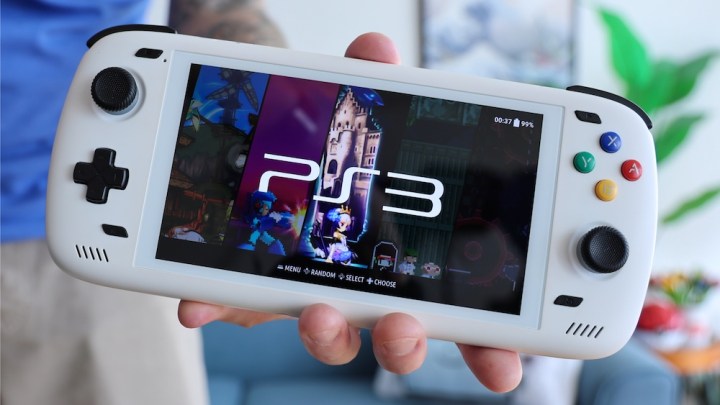
Big news: we have Linux OS options available on high-end Android handhelds like the recent Retroid Pockets, Odins, Thor, and more! This makes them the most powerful ARM-based Linux handhelds in the world. Let’s go over how to install it, and why you might want to consider it — including the ability to emulate higher-end systems like PS3 and Xbox.
Disclaimer: this is an early, experimental process and should only be considered for those who wish to tinker!
Table of Contents

Setup and accessories
Some considerations
Download ROCKNIX
Install
Transferring games
BIOS locations
PortMaster and Wine/Box ports
Getting back to Android
Restoring the stock bootloader

Changelog
Setup and accessories
There are several handhelds that now work with this guide:
Retroid:
Retroid Pocket 5 (SD865)
Retroid Pocket Mini (SD865)
Retroid Pocket Flip 2 (SD865)
Retroid Pocket 6 (SD8 Gen2)
AYN:
AYN Odin 1 Pro (SD845)
AYN Odin 2 (SD8 Gen2)
AYN Odin 2 Mini (SD8 Gen2)
AYN Odin 2 Portal (SD8 Gen2)
AYN Thor (SD8 Gen2)
AYANEO:
AYANEO Pocket S (SD G3x Gen2)
AYANEO Pocket EVO (SD G3x Gen2)
AYANEO Pocket DMG (SD G3x Gen2)
AYANEO Pocket DS (SD G3x Gen2)
KONKR Pocket Fit (SD G3 Gen3)
AYANEO Pocket S2 (SD G3 Gen3)
The Linux OS we are going to use in this guide is ROCKNIX, a mature custom firmware that is available on a number of different handhelds. ROCKNIX boots from a microSD card, so you will need a new microSD to host this operating system. Because ROCKNIX’s big advantages include higher-end emulation, I would recommend a larger microSD card to host all of those PS3, Xbox, and Wii U files.
256GB:
Samsung EVO Select
SanDisk Extreme

512GB:
Samsung EVO Select
SanDisk Extreme
Some considerations
If you are still debating whether to install ROCKNIX on your handheld, some things to keep in mind:
- This process is not destructive. ROCKNIX will not touch your Android installation and files, so you can easily switch between the two. This guide will install a new custom Android bootloader (ROCKNIX abl) that allows us to boot Linux from a microSD card. It is simple to revert back to the original Android bootloader.
- The beauty of ROCKNIX is that the entire OS is already set up and configured for you. No need to hunt down emulators, keep them updated, etc. Once installed, you just have to add your games (and BIOS files as needed) and immediately start playing your games.
- While ROCKNIX opens up some native emulators like the Linux versions of RPCS3, Cemu, and Xemu, other emulators are older than their Android counterparts (AetherSX2), or not available at all on this OS (Eden, GameNative, GameHub). I think of ROCKNIX as a fun complement to my emulation setup, but not a replacement for Android.
- ROCKNIX allows you access to PortMaster, where you can play over 1,000 PC ports.
- Once installed, booting into ROCKNIX is as simple as pressing down the VOL DOWN + POWER at the same time while turning on your device, which will go into the ROCKNIX abl. From there, you can choose to boot into Android or Linux, and it will remember your choice with future boots. To revert to the other mode, just repeat this process.
- ROCKNIX on this device is still a work in progress, so your best bet is to check out their discord for the latest info.
Download ROCKNIX
There are two ways to flash ROCKNIX to your microSD card:
Automatic method (Windows only):
ROCKNIX has a handy downloader app (called Image Burner) for Windows, which will download and flash the microSD card image all at once. You can find this tool here.
- Download Image Burner, then open the app
- Change the release version from “Stable” to “Nightly”
- Choose your device. If your specific device isn’t listed, grab an equivalent image (Odin 2 instead of RP6, etc). As long as the device uses the same chipset, you’ll be fine.
- Make sure your microSD card is inserted and selected, then run the app. It will download and flash the image to your microSD card.
Manual method:
- ROCKNIX periodically releases official builds, which you can find on their Releases Page.
- ROCKNIX hosts nightly images on this website (or their nightly GitHub repository), these will be more updated.
- It can be tricky to figure out which version to download. You’re looking for the img.gz file extension for the chipset of your device. Here is a quick breakdown:
- SDM845 = SD845 (Odin 1 Pro)
- SM8250 = SD865 (Retroid Pocket 5, etc)
- SM8550 = SD 8 Gen 2 or equivalent (Odin 2, AYANEO Pocket DMG, RP6, etc)
- SM8650 = SD 8 Gen 3 or equivalent (KONKR Pocket Fit, etc)
- It can be tricky to figure out which version to download. You’re looking for the img.gz file extension for the chipset of your device. Here is a quick breakdown:
To install ROCKNIX manually, you will need to flash the image to your microSD card. If the file you downloaded is in .zip format, you may need to unzip it first. For Windows, I would recommend using Rufus, and for Mac, you can use Raspberry Pi Imager.
Install ROCKNIX
Once you have flashed ROCKNIX to your microSD card, insert the card into your device and power it on. It will boot into Android.
- While running Android, use the Files apps to navigate to the microSD card. In the card’s root directory you should see a folder named “ROCKNIX_abl”. Long-press on that folder, then go into the menu and select “Copy to…”
- Navigate to the root directory of your internal storage, and select “Paste” to copy that folder to your device’s root storage.
- Go to Android Settings > Handheld Settings > Run Script as Root and when prompted, navigate to the “ROCKNIX_abl” folder in the root directory of your device’s internal storage. Open the folder and inside you’ll find a file named “backup_abl.sh”, open and run this script. You will see some text prompts and then a notification that the script has run successfully.
- Note that if you have an AYANEO device, the “Run script as root” option will be found in AYASETTINGS > Device instead of the Android settings.
- Go back to Android Settings > Handheld Settings > Run Script as Root and navigate to the “ROCKNIX_abl” folder in your internal storage root directory again. Open the folder and inside you’ll find a file named “flash_abl.sh”, open and run this script. You will see some text prompts and then a notification that the script has run successfully.
- Press and hold the POWER button on your device, and then when the prompt comes up, choose “Restart”. As soon as the device restarts, press and hold the VOLUME DOWN button and the device will boot into the abl.
- Inside the abl, press the VOLUME UP or DOWN buttons to choose your options, and navigate to “Set the Device” and press the POWER button to confirm. Once in the “Set the Device” menu, choose your device. From there, you should see on the screen that the Boot Mode is set to Linux; this means that when you boot the device, it’s going to look for a ROCKNIX microSD card and boot into it. You can now select the START menu option to boot into ROCKNIX.
- If you want to boot into Android, then when in the abl select the “Change Boot Mode” option to change the Boot Mode to Android.
- That’s it, your device should now be in ROCKNIX.
Transferring games
ROCKNIX uses an EXT4 (Linux) file system, which means that your ROCKNIX card cannot be read by a Windows PC or Mac without special software. There are many ways to transfer files, and the ROCKNIX wiki has a great roundup of your options.
- Network transfer: once connected to your home network, you can transfer your files wirelessly. SMB is an easy way to do this, the ROCKNIX wiki will walk you through the process.
- Linux machine: if you have a Linux machine like the Steam Deck, you can simply transfer files onto the card via that platform.
- External USB drive: like I show in the video above, if you have an external USB drive (or something like a microSD card USB reader) you can use ROCKNIX’s built-in File Manager app to transfer files from the USB drive to your ROCKNIX microSD card. This method is faster than using a network transfer.
To find which files need to be added for each system, I recommend browsing the ROCKNIX wiki, under the “Systems” section you will find a page for each console and any pertinent information. ROM files are copyrighted and will not be shared on this website.
BIOS locations
BIOS files are a little tricky on ROCKNIX, so here is how to place them. BIOS files are also copyrighted so you are on your own to source them.
Some BIOS files are pretty standard, you simply add them to the bios folder on your ROCKNIX microSD card. Here is a list of the most common files:
GAME BOY / COLOR:
gb_bios.bin
gbc_bios.bin

GAME BOY ADVANCE:
gba_bios.bin

PLAYSTATION 1 (many options!):
scph5501.bin

SATURN:
sega_101.bin
mpr-17933.bin
SEGA CD:
bios_CD_E.bin
bios_CD_J.bin
bios_CD_U.bin

NEO GEO (also place in Neo Geo ROM folder):
neogeo.zip

TURBOGRAFX-CD:
syscard1.pce
syscard2.pce
syscard3.pce
Others are a little more tricky, here is a quick rundown:
Pico-8: see the ROCKNIX wiki for instructions.
Dreamcast: place in bios / dc folder. The file name is dc_boot.bin, and you can add others like NAOMI as well.
PS2: place in bios / aethersx2 / bios folder. It’s recommended to use the SCPH-70012.bin BIOS file for the best compatibility (it is case-sensitive).
PS3: You will need to install the PS3 firmware manually through the RPCS3 menu. The ROCKNIX wiki covers the process; consider using a USB mouse to make the process easier. Adding PS3 games themselves is a little tricky, but thankfully the ROCKNIX wiki has that covered as well.
Xbox: place the XBOX files in the ROCKNIX bios > xemu > bios folder. The specific files and their locations are found on the ROCKNIX wiki.
PortMaster and Wine/Box ports
One of the coolest things about ROCKNIX is that it has PortMaster support, which means that you can load up over 900 PC games on your device. This includes “ready to run” ports that can be installed completely from the app, as well as commercial ports where you will need to add your own PC files after purchasing the game on Steam or similar platforms. Here is my full PortMaster guide.
PortMaster community member Jeod has also made a number of PC Wine ports available as well, including titles like Cuphead, Tunic, and Hollow Knight. These games require more power, so the Odin 2 is an excellent fit. Here is a link to their repository. The installation process is similar to PortMaster, you simply add the port files to your microSD card’s Ports folder, then add your commercial files.
If you want to try your hand at building your own Wine ports for ROCKNIX, Jeod has made a guide to get you started.
Getting back to Android
- When in the ROCKNIX menu, press the START button and select QUIT > RESTART SYSTEM. Confirm the restart, and as soon as the device restarts, press and hold the VOLUME DOWN button and the device will boot into the abl.
- Inside the abl, press the VOLUME UP or DOWN buttons to navigate to “Change Boot Mode”, then press the POWER button to confirm. This will change the Boot Mode to Android, and change the menu option to “Start”, just press the POWER button to confirm and it will boot into Android from now on. To get back to ROCKINX, repeat these steps to change the Boot Mode to Linux.
Restoring the stock bootloader
If you want to revert to the original stock Android bootloader, it’s very simple. We already backed up your abl in the previous installation setup.
- Go to Android Settings > Handheld Settings > Run Script as Root and when prompted, navigate to the “ROCKNIX_abl” folder in the root directory of your device’s internal storage. Open the folder and inside you’ll find a file named “restore_backup.sh”, open and run this script. You will see some text prompts and then a notification that the script has run successfully.
Changelog
16MAR2016
– updated ROCKNIX installation process (with new abl and Image Burner)
13MAR2026
– updates in support of upcoming video
17MAY2025
– added support information about Odin 2 Portal and Mini
11MAR2025
– added link to new ROCKNIX nightly page
05MAR2025
– added disclaimer about LinuxLoader disabling charging while powered off, and potential for future OTA update issues
– added guide to restore stock abl
04MAR2025
– updated guide to link to new nightly build options on their website
03MAR2025
– published guide


Really appreciate your passion for retro gaming… But it would be really cool to see a video of what you love playing… Like a favs video… Also, love your shirts, am a bit jelly… Thank you Mark!
LikeLike
With Rocknix on the RP5 there’s a command that allows you to use the same micro SD with both Rocknix and Android:
chmod -R 777 /storage(https://www.reddit.com/r/retroid/comments/1h4lxsv/setting_up_the_best_of_both_worlds_android_rocknix/)Any idea if that command works with Rocknix and the Odin 2 Russ?
LikeLike
Yes, this process should also work on the Odin 2, but keep in mind that no matter what, if the card is in the device when you turn it on or reboot it, it will boot into ROCKNIX. So you’d need to eject the card and boot the machine every time you want to go into Android.
In general I haven’t been recommending this method simply because it’s not officially supported by the team and could potentially cause issues down the line as they update their file structure. It’s certainly fun to try from a tinkering perspective but I’d recommend folks think of it as a temporary solution, that might get overwritten at some point in the future.
LikeLike
I forgot about that aspect of it! You’d need to take out the card to boot into Android and then put it back in again. Yeah that sucks. Thanks for saving me the time and effort.
LikeLike
https://frontiermolecules.com/
LikeLike
The Odin 2 (SM8550) image is on their website now.
LikeLike
Awesome, thank you for the heads up! I just updated the guide to reflect the new method.
LikeLike
Has anyone tried Ryujinx ARM64 on Rocknix? Are the driver issues dealt with better there than on Android?
LikeLike
Hi Russ, the script you run does back up the 2 abl files needed to restore the original bootloadder. I did notice the folder it created in the root folder. So you should be able to restore the original bootloader.
LikeLike
So, if the battery is exhausted in the device to the point that it won’t power back on, and you plug it in to charge, does it power on and charge or have you just bricked your device? If the latter, I believe I’ll wait until a more mature version of the bootloader is released.
LikeLike
Just installed it on my Portal. Any tips how to swap menu buttons in ES? It is set to Right/Circle for confirm and Down/Cross for reject/go back.
LikeLike
Hello @Russ and everyone else.
The new 355 firmware brings an important improvement: dual boot under Linux.
It is therefore no longer necessary to download scripts, the process is much simpler now, here’s how it goes:
And that’s it ! Of course, if you want to comme back on Android, repeat step 4 and choose “Android”
Have a nice day
LikeLike
Love all the guides/videos, thanks for all the work you do for the community.
Question for you, do you know if the abl_a and abl_b files in your stock bootloader script will work on the Mini pro? I made the same mistake and lost my stock abl files.
LikeLike
Really enjoyed this article and the practical information provided. Anyone interested in scientific methodologies and laboratory research can explore educational information on molecular research and quality control. Looking forward to more content like this.
LikeLike
There was a recent system update on my odin2 that appears to have added a force linux boot toggle in the settings. Does that mean we dont need this work around anymore?
LikeLike
https://veeze.fr/xalaflix/
LikeLike
This is honestly one of the most exciting developments for handheld emulation. The idea of running a full Linux environment like ROCKNIX on the Odin 2 and unlocking the potential for higher-end emulation such as PS3 and Xbox is incredible. Visit Website
LikeLike
I like the walkthrough here. It is important to note that with the nightly build (as of March 19 2026) the correct build will not boot at all on the Ayaneo Pocket EVO. All it does is sit at a black screen and do nothing at all. Selecting the option to go back to Android also just puts the device into a boot loop. Also running the devices internal recovery to return to system defaults also will no longer boot. So I have a bricked Pocket EVO. I am not mad at Russ for this but I highly recommend against doing this right now.
LikeLike
Just wanted to add that I was able to recover my EVO by using AYANEO’s image they host on their website. Following their directions included in the download I was able to flash the original image onto the internal storage. It now boots fine.
LikeLike
I think I just bricked my AYN Thor….
I installed Rocknix following your guide and I can’t boot back into android. I choose android from the bootloader and it just goes through an endless reboot cycle. I can get back to the bootloader and enter fastboot, but I can only boot into linux. If I boot with no sd card it just errors out and says to reboot. Very frustrating.
LikeLike
Hey Girard, try and get a hold of AYN for the recovery image and the qualcomm software to restore your Thor to factory. I had the exact same issue with my Ayaneo Pocket EVO and I had to restore it using the original factory image and the qualcomm flashing software.
LikeLike
I downloaded a copy of “Thor_20260112” firmware but I am unable to get a Qualcomm ID with Qualcomm Software Center to be able to flash it on the device. The website always says an error has occurred, try again later.
LikeLike
Hey Gerard (and Jeff),
I had the same problem with my Thor (I also used the b0rked 20260317 nightly). The fix turned out to be easier than I thought:
1. Get the older (1.0.0) version of the Rocknix ABL from the Rocknix github page: https://github.com/ROCKNIX/abl/releases/tag/v1.0.0
Look for the file called “abl_signed-SM8550.elf”.
2. Boot your Thor into fastboot (hold the ¨volume -” key when it is rebooting and select the ¨recovery” mode using volume up or down; then select “Enter fastboot”).
3. Connect your device to a PC with Android platform tools installed.
4. Flash the 1.0.0 ABL using fastboot (the command is something like ¨fastboot flash abl abl_signed-SM8550.elf”).
4. Enjoy your fixed ABL and ability to boot into Android again.
(Admittedly, this is a very brief summary. There are plenty of steps I skipped such as how to flash stuff with fastboot, getting android platform tools etc. There should be plenty of guides on how to do this online, but if you are struggling, feel free to howler and I’ll type up something more in-depth)
LikeLike
I finally fixed my Thor after tinkering for days. I was able to reflash the “Thor_20260112” firmware from my Linux PC using QDL from the terminal. after booting the Thor in emergency mode from the Rocknix bootloader. It wiped everything and I had to set everything up again but I’m just happy to get everything working again. No more fiddling with new pre-release firmware from now on!
LikeLike
This is honestly one of the most exciting developments in the handheld scene right now. Turning powerful Android devices into dual-boot Linux machines feels like unlocking a whole new tier of potential—especially with access to things like native emulators and PortMaster. Visit Blog
LikeLike
I have a preloaded Rocknix 1TB card, but I can’t find the ABL file online that I need for my Odin 2 Portal. Any help from the community would be greatly appreciated — I just don’t want this card investment to end up being wasted. I’m not very tech‑savvy, so I might be missing something simple.
LikeLike
This is honestly one of the more exciting directions handheld emulation has taken in a while. The idea of turning Android-based devices like the Odin or Retroid into dual-boot Linux machines feels like unlocking a whole second identity for the hardware. The fact that ROCKNIX runs entirely off a microSD without touching your Android setup makes it way less intimidating to experiment with—it’s basically a playground for tinkerers.
LikeLike
This is honestly one of the most exciting developments in handheld gaming right now. Seeing devices like the Retroid Pocket 6 or AYN Odin 2 stepping into full Linux territory with ROCKNIX feels like a huge leap forward—not just in power, but in flexibility. The fact that you can boot from microSD and essentially transform your Android handheld into a dedicated Linux emulation machine is wild.
LikeLike
This is seriously exciting for the handheld scene. The idea of running a full Linux-based system like ROCKNIX alongside Android on devices like the Retroid Pocket and Odin lineup feels like a huge step forward in flexibility and power. Being able to dual-boot without touching the original Android setup makes it much less intimidating to try out, especially for people who don’t want to risk breaking their device.
LikeLike
What makes this especially exciting is how it blurs the line between Android convenience and Linux flexibility. Instead of choosing between polished hardware and open-source freedom, users can now experiment with both on the same device. It’s not just about better emulation—it’s about unlocking these handhelds as versatile gaming computers.
LikeLike
Excellent article and very easy to follow. For those interested in understanding how research materials are tested, documented, and evaluated in laboratory settings, you can explore peptide research resources and testing information here. I enjoyed reading this post.
LikeLike
This is an excellent guide for anyone interested in getting more out of their Android handheld. I appreciate that it clearly explains both the benefits and the experimental nature of installing ROCKNIX, making it easier for beginners to decide if it’s right for them. The hardware compatibility list and setup recommendations are especially helpful, and the potential for improved PS3, Xbox, and Wii U emulation makes this an exciting option for enthusiasts who enjoy tinkering with their devices.
LikeLike
This is an excellent guide for anyone interested in getting more out of their Android handheld. I appreciate that it clearly explains both the benefits and the experimental nature of installing ROCKNIX, making it easier for beginners to decide if it’s right for them. The hardware compatibility list and setup recommendations are especially helpful, and the potential for improved PS3, Xbox, and Wii U emulation makes this an exciting option for enthusiasts who enjoy tinkering with their devices.
LikeLike
This is an exciting development for handheld gaming enthusiasts. Running ROCKNIX from a microSD card gives users the flexibility to enjoy a dedicated Linux gaming experience without replacing Android, and the potential for improved PS3, Xbox, and Wii U emulation is especially impressive. It’s great to see powerful Snapdragon-based handhelds gaining mature Linux support, making them even more versatile for retro and modern emulation alike. Fantastic guide for anyone looking to get the most out of their device!
LikeLike
It’s exciting to see Linux making its way onto premium Android handhelds through ROCKNIX. Running the operating system directly from a microSD card gives users the freedom to experiment without replacing Android, while unlocking impressive emulation capabilities for demanding systems like PS3, Xbox, and Wii U. As Snapdragon-powered handhelds continue to become more powerful, projects like ROCKNIX are turning them into versatile gaming devices that appeal to both retro enthusiasts and Linux tinkerers alike.
LikeLike
This is a really impressive development for Android handhelds. Being able to dual-boot ROCKNIX from a microSD card without sacrificing the existing Android setup makes experimenting with Linux much less intimidating. The combination of higher-end emulation, PortMaster, and a preconfigured gaming environment could turn devices like the Odin 2 and Retroid Pocket 6 into incredibly versatile gaming machines.
LikeLike
The guide makes ROCKNIX feel approachable for handheld owners, especially because it explains installation, dual booting, storage, and emulator considerations without assuming much prior Linux knowledge or experience with tinkering.https://himovies.cloud/
LikeLike